Starlight of Irua | イルアの星光
Outfits, toggles, and mood particles — all from the tip of your index finger. ✦
✨ What this gimmick does
This gimmick is an Object Menu System that lets you switch outfits and accessories with hand controls. It is built around Modular Avatar, and setup is applied automatically on Build or when entering Play Mode.
📦 Requirements
- Unity 2022.3.22f1
- VRChat Avatar SDK | ↑ 3.10.x
- Modular Avatar | ↑ 1.17.x
- liltoon Shader
Starlight of Irua [LeftHand].prefaborStarlight of Irua [RightHand].prefabStarlight of Irua [Object Menu System].prefab
Important notes
- This asset uses the PhysBone system. It will not work correctly if PhysBone interactions are disabled.
- This asset uses the Particle System. It may not work correctly if
Particle Limitis enabled in VRChat's graphics settings.
🛠 Setup
1. Basic install
Place your preferred hand-direction prefab and Starlight of Irua [Object Menu System].prefab under the avatar Root.
2. Outfit Switch setup
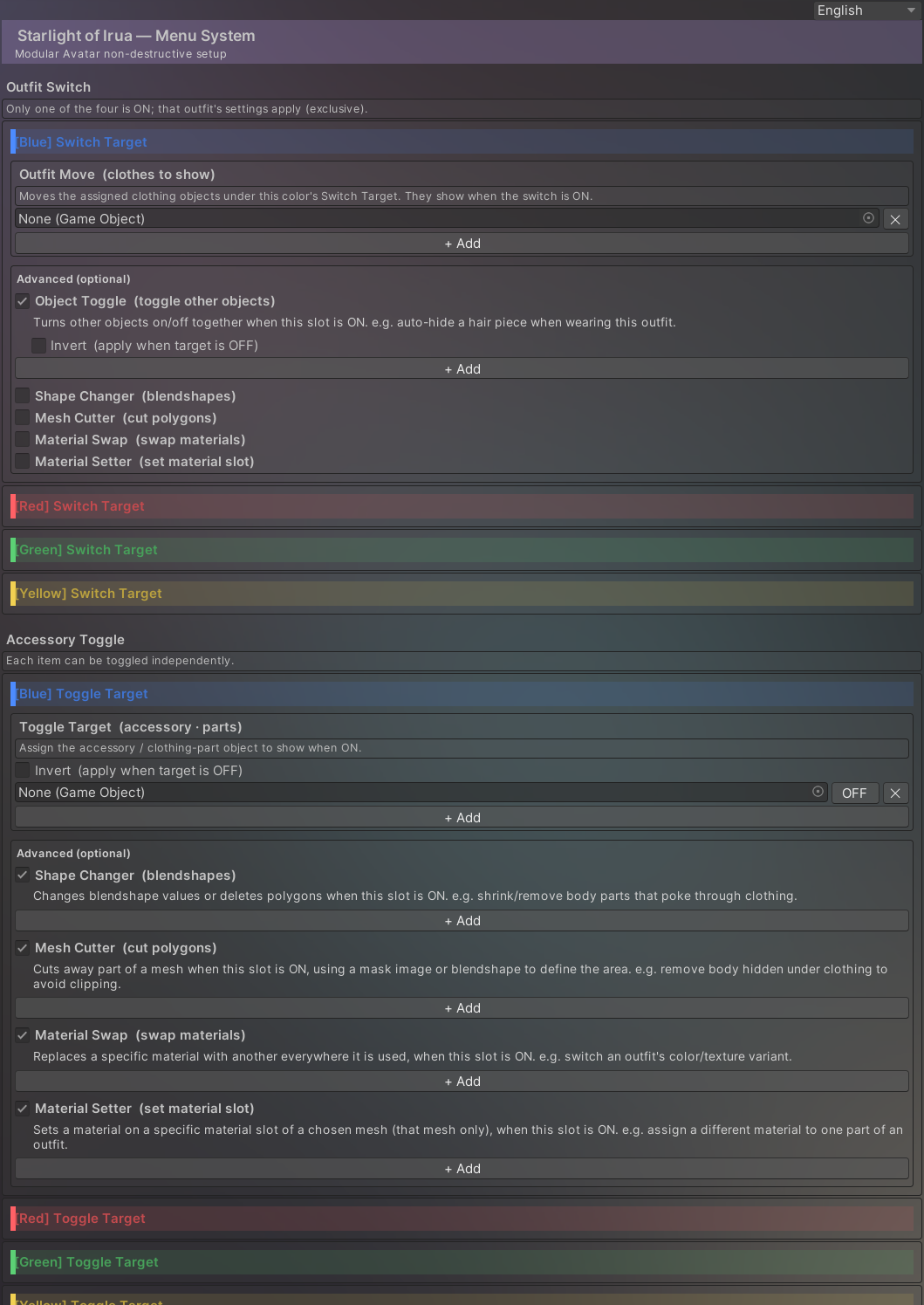
Starlight Menu System has 4 fixed Outfit Switch slots. Put the outfit objects you want to show for each color into the matching slot.
- The slots are fixed to Blue / Red / Green / Yellow.
- Outfit switching is exclusive: only 1 of the 4 is active at a time.
- Assigned outfit objects are moved under the matching
Switch Targetduring Build.
3. Accessory Toggle setup
Accessory Toggle also has 4 fixed slots. Put accessories, outfit parts, or other objects you want to toggle into each slot.
- Each toggle works independently.
- If needed, use
Invertto reverse the ON/OFF condition.
4. Optional features
Enable only the features you actually need.
Object Toggle: turns other objects on or off together.Shape Changer: shrinks or deletes body mesh areas hidden by clothing.Mesh Cutter: cuts part of a mesh to reduce clipping.Material Swap: replaces one material with another in bulk.Material Setter: changes only a specific material slot on a specific mesh.
5. Setup Outfit warning
If an outfit object shows a Setup Outfit warning, it is recommended to prepare it with Modular Avatar Setup Outfit first. This can be especially important for skinned mesh outfits.
6. Apply
There is no Apply button. The setup is applied automatically when you Build or enter Play Mode.
🎮 In-game controls
All controls are performed with the tip of the index finger.
1. Open / close the menu
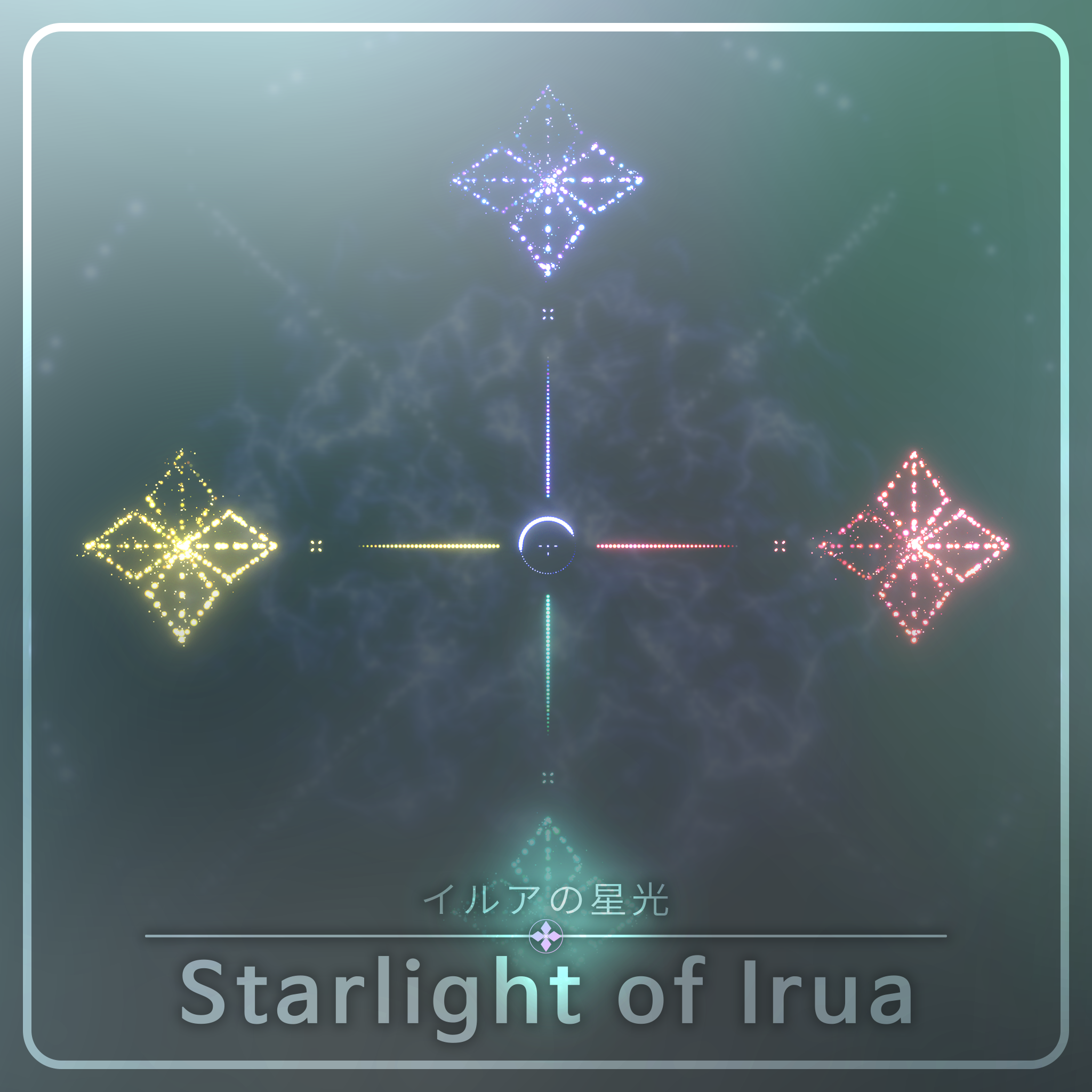
Touch the bracelet logo for 1 second to open the menu. Touch it once again to close the menu. The menu may also close automatically after enough avatar movement.
2. Change outfit
Touch one of the symbols for 1 second to change the SwitchTarget. The bracelet color and the center ring color also change to the selected color.
3. Change toggle state
Drag one of the symbols toward the center to change the ToggleTarget state.
4. Use particles
Touch the center to fire particles. You can also draw a clockwise or counterclockwise circle from the start point of each symbol to trigger the corresponding particle.